Make the table yours.
Resize, reorder, hide, and pin columns. Your layout is remembered for each collection, so the fields you care about stay in view.
Document browser
Scan a collection, follow a nested object, or read the whole document as JSON. Bison gives you three ways to look at the same data, in a workspace that remembers where you left off.
Take a closer look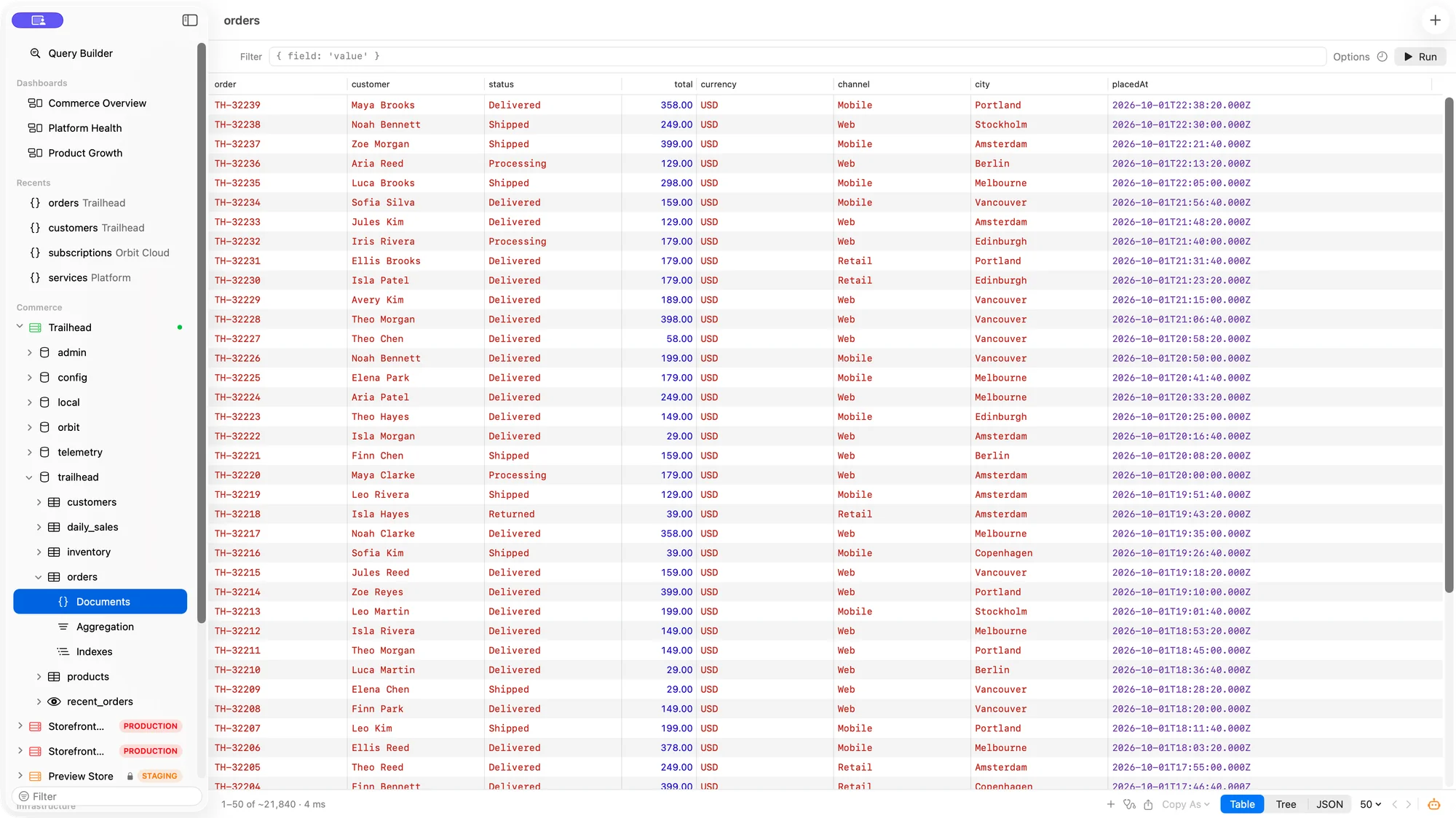
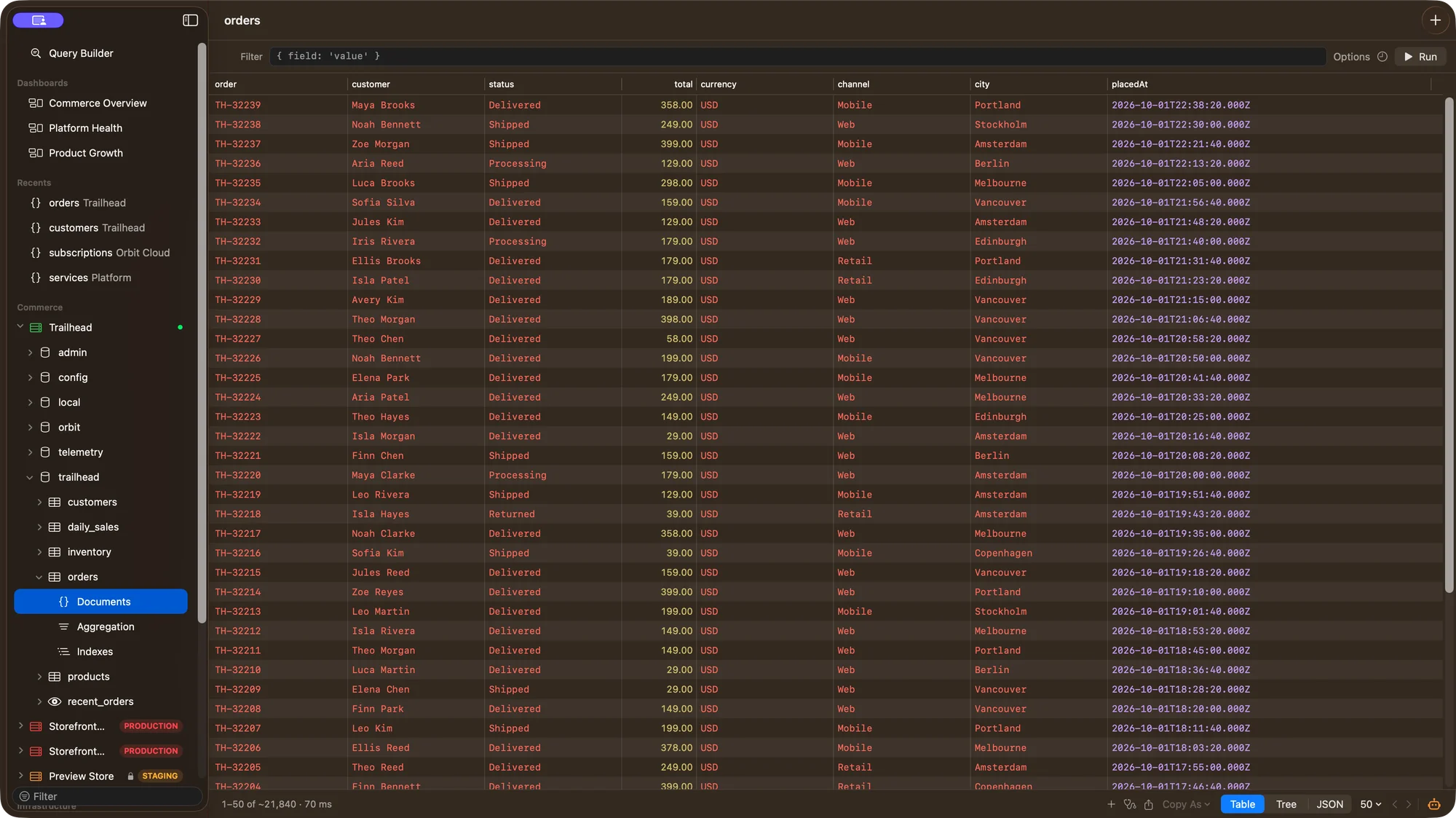
Resize, reorder, hide, and pin columns. Your layout is remembered for each collection, so the fields you care about stay in view.
Open a nested object or array from the grid in the tree view. Expand just the part you need, with BSON types beside the values.
Recent collections stay close in the sidebar. Each collection keeps its query and view state as you move around your databases.
From first click to useful work
Move through connections and databases in the sidebar, or return to a recent collection.
Use the table for a quick scan, the tree for nested details, or JSON for the full document.
Copy cells or rows as Extended JSON, shell syntax, JSON, or tab-separated values.
A few practical details
Yes. Browsing and the JSON results view are read-only. Open a document in the editor when you want to make changes.
No. Results are paged and the table is virtualized. You can choose the page size, filter results, and run an explicit count when you need one.